2009年9月20日 星期日

中文與英文字型

灌新電腦後要裝的字體。(留給自己之後可以查)

中文:

英文:

  • Bitstream Vera Fonts,某些網站會用到,像是 Github 提供的Gist,如果沒有這個字型就會依照 CSS 改用 “Courier, Monospace”,看起來就不太舒服了…

參考資料: http://blog.gslin.org/

2009年9月16日 星期三

微軟 usb 修正檔

2009 八月推出 WindowsXP-KB971029-x86-CHT.exe
插上去的時候一樣會跳出對話框,已經不會自動執行隨身碟裏面的 autorun.inf ,光碟一樣會執行,除非修改機碼。

2009 二月推出 WindowsXP-KB967715-x86-CHT.exe
安裝此更新,必須手動去修改 NoDriveTypeAutoRun 和 NoDriveAutoRun 的機碼才算是真正能去停用 Autorun.inf。
否則之前修改 NoDriveTypeAutoRun 和 NoDriveAutoRun 是修改好看的而已。

可參考此網頁

http://support.microsoft.com/kb/967715/zh-tw

所以裝八月的 WindowsXP-KB971029-x86-CHT.exe 就可以了,也最方便。

快速明細
檔案名稱:WindowsXP-KB971029-x86-CHT.exe
版本:971029
Knowledge Base (KB) Article:KB971029
發佈日期:2009/8/24
語言:繁體中文
下載項目大小:3.1 MB


disable USB storage usage(如何停用 USB 儲存裝置)

本文將告訴您,可以防止使用者連接 USB 儲存裝置的兩種方法。


停用 USB 儲存裝置


如果要停用 USB 儲存裝置,請依實際情況使用下列其中一項或多項程序:

如果電腦上並未安裝 USB 儲存裝置


如果電腦上並未安裝 USB 儲存裝置,請將使用者或群組對下列檔案的使用權限設定為「拒絕」權限:

  • %SystemRoot%\Inf\Usbstor.pnf

  • %SystemRoot%\Inf\Usbstor.inf


執行這項操作之後,使用者就無法在電腦上安裝 USB 儲存裝置。如果要將使用者或群組對 Usbstor.pnf 和 Usbstor.inf 檔案的使用權限設定為「拒絕」權限,請依照下列步驟執行:

  1. 啟動 Windows 檔案總管,然後找出 %SystemRoot%\Inf 資料夾。

  2. 用滑鼠右鍵按一下 Usbstor.pnf 檔案,然後按一下 [內容]。

  3. 按一下 [安全性] 索引標籤。

  4. 在 [群組或使用者名稱] 清單中,按一下您要為其設定「拒絕」權限的使用者或群組。

  5. 在 [UserName or GroupName 的使用權限] 清單中,按一下以選取 [完全控制] 旁邊的[拒絕] 核取方塊,然後按一下 [確定]。

    注意 除此之外,亦請將 System 帳戶加入 [拒絕] 清單中。

  6. 用滑鼠右鍵按一下 Usbstor.inf 檔案,然後按一下 [內容]。

  7. 按一下 [安全性] 索引標籤。

  8. 在 [群組或使用者名稱] 清單中,按一下您要為其設定「拒絕」權限的使用者或群組。

  9. 在 [UserName or GroupName 的使用權限] 清單中,按一下以選取 [完全控制] 旁邊的[拒絕] 核取方塊,然後按一下 [確定]。


如果電腦上已經安裝 USB 儲存裝置


警告 如果您使用「登錄編輯程式」或其他方法不當地修改登錄,可能會發生嚴重問題。這些問題可能會需要您重新安裝作業系統才能解決。Microsoft 不保證可以解決這些問題。請自行承擔修改登錄的一切風險。 如果電腦上已經安裝 USB 儲存裝置,請將下列登錄機碼的 Start 值設定為 4:
HKEY_LOCAL_MACHINE\SYSTEM\CurrentControlSet\Services\UsbStor

執行這項操作之後,即便使用者將 USB 儲存裝置連接到電腦上,該裝置也無法運作。如果要設定Start 值,請依照下列步驟執行:

  1. 按一下 [開始],再按一下 [執行]。

  2. 在 [開啟] 方塊中,輸入 regedit,再按一下 [確定]。

  3. 找出並按一下下列登錄機碼:
    HKEY_LOCAL_MACHINE\SYSTEM\CurrentControlSet\Services\UsbStor


  4. 在右邊窗格中,按兩下 Start。

  5. 在 [數值資料] 方塊中輸入 4,再按一下 [十六進位] (如果尚未選取),然後按一下 [確定]。

  6. 結束「登錄編輯程式」。


這篇文章中的資訊適用於:


  • Microsoft Windows XP Home Edition (家用版)

  • Microsoft Windows XP Professional

  • Microsoft Windows 2000 Advanced Server

  • Microsoft Windows 2000 Professional Edition

  • Microsoft Windows 2000 Server

  • Microsoft Windows Server 2003, Enterprise Edition (32-bit x86)

  • Microsoft Windows Server 2003, Standard Edition (32-bit x86)

Q. How can I set USB devices to read-only via Group Policy?

Q. How can I set USB devices to read-only via Group Policy?


A. A. In a previous FAQ, I talked about setting USB devices to read-only by setting the registry value

HKEY_LOCAL_MACHINE\SYSTEM\CurrentControlSet\Control\StorageDevicePolicies\WriteProtect to 1.

To set from Group Policy, you need to create a custom administrative template file.

Below is a template file in the ADM format.
CLASS MACHINE CATEGORY "USB Storage Devices" POLICY "Write Protect USB Storage" KEYNAME "SYSTEM\CurrentControlSet\Control\StorageDevicePolicies" VALUENAME "WriteProtect" VALUEON NUMERIC 1 VALUEOFF NUMERIC 0 END POLICY END CATEGORY 
Import the policy into a Group Policy Object (GPO) and you will be able to configure the setting as the Figure shows. To view, make sure you don't have Filter On enabled in Windows Server 2008 or disable the "Only show policy settings that can be fully managed" option in pre-2008 GPO editors.

How can I mark my USB storage devices as read-only?

可以讀 USB 不能寫 USB

Q. How can I mark my USB storage devices as read-only?

A. Windows XP Service Pack 2 (SP2) introduces a new registry subkey that lets you mark USB-based storage devices such as memory sticks as read-only devices. This is a useful security capability that can prevent users from copying data from their systems and taking that data offsite via a USB device. To enable the USB write protection, perform the following steps:

  1. Start the registry editor (regedit.exe).
  2. Navigate to the HKEY_LOCAL_MACHINE\SYSTEM\CurrentControlSet\Control\StorageDevicePolicies subkey. (Create the StorageDevicePolicies subkey if it doesn't already exist.)
  3. From the Edit menu, select New, DWORD Value.
  4. Type the name WriteProtect and press Enter.
  5. Double-click the new value and set it to 1. Click OK.
  6. Close the registry editor.
  7. Restart the computer.

To disable this change, you can either set WriteProtect to 0 or delete it.


Microsoft article : “Step-By-Step Guide to Controlling Device Installation and Usage with Group Policy”

http://www.microsoft.com/technet/windowsvista/library/9fe5bf05-a4a9-44e2-a0c3-b4b4eaaa37f3.mspx


Intel Chipset Device Software 驅動 9.1.1.1020PV 正式版

驅動簡介:
Intel英代爾晶片組Intel Chipset Device Software驅動9.1.1.1020 PV版For Win2000/XP/2003/XP-64/2003-64/Vista/Vista-64/2008/2008-64/Win7/Win7-64(2009年9月14日發佈)

熱點問題一:近期有部分讀者反映Intel英代爾晶片組INF驅動無法正常安裝的問題。而事實情況是,Intel的INF驅動安裝程式會首先判斷此主板到底需要不需要安裝新版驅動,如果需要則正常安裝,如果不需要即便進行了安裝,Intel的安裝包也會快速跳過安裝進程,沒有進行實質安裝。我們猜測Intel可能是出於穩定性和安全性考慮,沒有為部分主板安裝此INF驅動。所以當某些用戶安裝Intel INF驅動時,安裝介面一閃而過,這就證明你電腦上所使用的已經是最新版本的晶片驅動,不在需要安裝額外的驅動版本。

熱點問題二:9月4號Intel發佈9.1.1.1019後,大部分用戶可以正常使用,但也有部分用戶在安裝時會出現:“不具備最低安裝條件”的錯誤提示,這其實是個BUG。本周,Intel方面推出緊急升級版本9.1.1.1020

具體更新包括:
1、修正9.1.1.1019安裝時出現“不具備最低安裝條件”錯誤提示的問題。
2、解決Intel P55(Ibex Peak)晶片組藍牙配對方面存在的問題。

新版驅動具體支持晶片組型號包括:Intel 5系晶片組、Intel 4系晶片組、Intel 3系晶片組、Intel 900系列晶片組、Intel 800系列晶片組、Intel伺服器/工作站系列晶片組

如是在新灌完系統,必須系統全部更新完後才安裝此驅動,如在現有系統下更新此驅動,請照下面方式來做,

安裝參考:安裝檔放入C:\下; 在"開始"下點選"執行"
輸入C:\INF_allOS_9.1.1.1020_PV.exe /overall

/overall 參數是全數用新版覆蓋確保全部更新

2009年9月11日 星期五

DirectX End-User Runtimes (August 2009)

多國語言版:


英文版:
http://www.microsoft.com/downloads/details.aspx?familyid=04AC064B-00D1-474E-B7B1-442D8712D553&displaylang=en

Quick Details
File Name:directx_aug2009_redist.exe
Version:9.27.1734
Date Published:9/8/2009
Language:English
Download Size:103.3 MB
Estimated Download Time:4 hr 12 min 56K

Overview

This download provides the DirectX end-user multi-languaged redistributable that developers can include with their product. The redistributable license agreement covers the terms under which developers may use the Redistributable. For full details please review the DirectX SDK EULA.txt and DirectX Redist.txt files located in the license directory.

This package is localized into Chinese (Simplified), Chinese (Traditional), Czech, Dutch, French, German, Italian, Japanese, Korean, Polish, Portuguese (Brazil), Russian, Swedish, and English.

2009年9月3日 星期四

Windows Server 2008下 還我極速下載速度

Windows Server 2008下 還我極速下載速度

相信不少朋友都會認為既然Windows Server 2008系統的功能十分強大,那麼在該系統環境下進行資訊下載操作時,速度也理應比傳統作業系統下的下載速度更快一些。不過,當我們在Windows Server 2008系統環境下實際嘗試下載操作時,感覺到在該系統環境下的資訊下載速度,有時還不如以前那樣迅速呢,這是什麼原因呢?出現這種原因,主要是Windows Server 2008系統在安全方面進行了強化,這給資訊下載操作帶來了不小的限制,從而制約了資訊下載速度!為了提高Windows Server 2008系統下的資訊下載速度,本文以迅雷下載工具為例,來向各位朋友推薦一些設定Windows Server 2008系統的技巧,確保Windows系統不會制約迅雷下載工具的資訊傳輸速度!

  1、 借助工具優化TCP/IP連接數

  大家知道,在傳統作業系統環境下,我們可以利用迅雷下載工具自帶的系統優化功能,來對電腦的TCP/IP連接數進行優化,讓系統缺省的TCP/IP連接數從"10"修改成合適的數值,這樣就能保證迅雷下載工具同時利用多個線程進行極速下載了。不過,在Windows Server 2008系統環境下,當我們再嘗試按照相同的方法來修改系統TCP/IP連接數時,發現迅雷下載工具自帶的系統優化功能已經失效了,這麼說來我們難道就沒有辦法對Windows Server 2008系統預設的TCP/IP連接數進行修改了?

  其實,為了增加Windows Server 2008系統下的TCP/IP連接數,網上現在專門有修改TCP/IP連接數的工具程式可以下載,將該工具程式下載保存到Windows Server 2008系統中,然後借助專業工具解壓,再執行解壓包中的"install.bat"批次檔案,隨後系統工作狀態將會被自動切換到MS-DOS命令行狀態,緊接著按下鍵盤中的"A"按鍵,選中預設安裝方式安裝該破解系統連接數的小工具,待安裝操作結束後,重新啟動一下Windows Server 2008系統,那樣一來TCP/IP連接數就會被自動增加到合適的數值;此時,在Windows Server 2008系統環境下,我們就可以啟用迅雷下載工具的多線程功能,來實現快速下載目的了。

2、啟用系統特有自動調諧功能

  與傳統作業系統相比,Windows Server 2008系統自帶了TCP/IP自動調諧功能,該功能可以依照實際的網路工作環境,來對網路連接數值進行自動調節,確保網路始終能以理想的速度進行傳輸。不過,在實際上網衝浪的過程中,Windows Server 2008系統並不能很好地根據網路環境來調整上網連接數;有鑒於此,我們必須採用手工方法來啟用Windows Server 2008系統自帶的TCP/IP自動調諧功能,以便希望該功能能夠優化迅雷下載工具的下載速度,下面就是具體的啟用步驟:

  首先以系統管理員許可權登錄進入Windows Server 2008系統,在該系統桌面中依次點選"開始"/"運

行"命令,在彈出的系統執行文本框中,輸入字串命令"cmd",單擊"確定"按鈕後,將系統工作狀態切換到DOS命令行工作狀態;

  其次在DOS命令行提示符下,輸入字串命令"netsh int tcp set global autotuninglevel=normal",單擊回車鍵後,系統螢幕上將會返回如圖1所示的結果介面,這說明Windows Server 2008系統自帶的TCP/IP自動調諧功能已經被成功啟用了。此時,迅雷下載工具在Windows Server 2008系統環境下的下載速度就能得到明顯提升了。

3、UPnP功能讓下載速度再快一些

  迅雷下載工具支持BT下載功能,而很多時候我們都是在局域網網路中進行BT下載操作,這時如果將Windows Server 2008系統的UPnP功能啟用起來,就可以讓下載速度再快一些。在啟用Windows Server 2008系統的UPnP功能時,我們可以按照下面的操作來進行:

  首先在Windows Server 2008系統桌面中依次單擊"開始"/"程式"/"管理工具"/"伺服器管理器"命令,打開對應系統的伺服器管理器控制臺視窗;

  其次在該控制臺視窗的左側顯示區域中,將滑鼠定位於"配置"分支選項上,在對應"配置"分支選項的右側顯示區域中,雙擊"服務"選項,打開Windows Server 2008系統的服務列表視窗;

  從該服務列表視窗中找到"SSDP Discovery"服務選項,用滑鼠右鍵單擊該目標服務選項,並從右鍵功能表中執行"屬性"命令,打開"SSDP Discovery"服務的屬性設定視窗;

  單擊該設定視窗的"常規"標籤,打開如圖2所示的標籤設定頁面,在該頁面中我們能夠非常清楚地看到"SSDP Discovery"服務此刻的執行狀態,要是發現目標系統服務已經被關閉執行時,我們可以直接單擊對應設定頁面中的"啟用"按鈕,來將"SSDP Discovery"服務先啟用成功,之後再將該服務的啟動類型參數調整為"

自動",最後單擊"確定"按鈕執行保存操作,如此一來Windows Server 2008系統就能支援UPnP功能了。

在啟用了Windows Server 2008系統的UPnP功能後,我們還需要打開迅雷下載工具的程式設定介面,將其中的"允許使用UPnP自動埠映射功能"選項以及"允許連接DHT網路"選項選中,這樣一來我們日後在Windows Server 2008系統環境下通過迅雷下載工具從Internet網路中下載資訊時,速度就能大大提升了。

  當然,如果局域網中使用的路由器還沒有啟用UPnP功能時,我們還需要進入路由器的後臺管理介面,從中找到"路由"標籤設定頁面,打開路由器參數設定頁面,之後單擊"轉發"選項卡,並在對應選項設定頁面中找到UPnP功能選項,檢查UPnP功能目前是否已經處於執行狀態,要是發現該功能還沒有被啟用時,那麼我們只要單擊對應設定頁面中的"啟用UPnP"按鈕,最後執行保存操作就可以了。

4、禁止模組安裝拖累下載速度

  在Windows Server 2008系統環境下,當我們利用迅雷下載工具下載一些大容量的多媒體檔案時,時常會碰到系統CPU資源突然被100%消耗的現象,這種現象會直接拖累迅雷工具的下載速度。引起這種現象的原因,主要是Windows Server 2008系統的模組安裝功能在搗亂;要是在下載資訊的過程中,Windows Server 2008系統自動執行模組安裝操作時,我們唯一能做的就是等待該安裝操作結束,系統CPU資源恢復正常,才能繼續進行資訊下載操作。為了不讓模組安裝操作拖累資訊下載速度,我們可以按照下面的設定來禁止模組安裝操作拖累下載速度:

  首先在Windows Server 2008系統環境下打開"開始"功能表,從中點選"執行"命令,打開對應系統的執行文本框,在其中輸入字串命令"services.msc",單擊"確定"按鈕後,進入對應伺服器系統的服務列表介面;

  其次用滑鼠雙擊服務列表介面中的"Windows Module Installer"選項,打開如圖3所示的屬性設定視窗;單擊其中的"常規"選項卡,在對應的選項設定頁面中單擊"停止"按鈕,將處於執行狀態的"Windows Module Installer"服務關閉執行;

為了避免"Windows Module Installer"

服務日後跟隨伺服器系統自啟動執行,我們還必須在"常規"設定頁面中將目標服務的"啟動類型"參數修改為"手工啟動",那樣的話我們日後使用迅雷下載工具下載大容量的多媒體資訊時,就不會碰到系統CPU資源突然被100%消耗的現象了。

2009年8月31日 星期一

面對隨身碟病毒,微軟終於硬起來了


相信大家或多或少都吃過USB隨身碟病毒的虧,像KAVO等,那真是令人困擾,網路上也有一堆防治程式出現,而微軟終於推出官方的修補程式來因應,這個代號為「KB971029」的更新作用只有一個,就是 閹掉 關掉USB隨身碟或光碟的自動執行,因為插入裝置時不會自動執行,那些靠自動執行的病毒就沒有用了。

其中,並沒有Windows 7的修補程式,看來大7早已解決了這個問題。

Windows XP - 請點我下載
Windows Vista(x86) - 請點我下載
Windows Vista(x64) - 請點我下載

2009年8月26日 星期三

記憶體管理利器 Minimem 1.3 版釋出 修正「隱型視窗」問題

2009/8/25 更新:

Minimem 在上一版發布經過將近一年的時間後,最近釋出了 Minimem 1.3。

這次更新的重點有:

  1. 修正「隱藏視窗」問題,之前在切換視窗的時候會看見 Minimem 視窗的問題已經解決了。
  2. 在通知區域(系統列)的圖示加上可用記憶體以及分頁檔大小的提示框
  3. 加入新版本發布時的更新通知

Minimem 軟體資料:

▼ Minimem 圖示的提示訊息

Minimem 1.3 - 通知區域圖示的訊息提示框

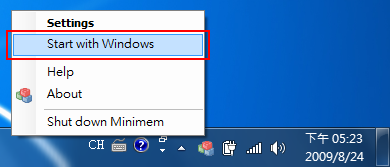
▼ 勾選右鍵選單的「Start with Windows」可讓 Minimem 自動執行

Minimen 1.3 - 隨 Windows 自動載入

Google Chrome 4.0.202.0 釋出

安裝


這一次 Chrome Dev 4.0 多了一個「書籤同步」的新功能,只要有 Google 的帳號就能把電腦裡的書籤儲存在 Google 的伺服器裡,每當我們新增一個書籤的時候,Chrome 的書籤就會自動與線上書籤同步。

不過目前這個功能還沒有正式開放,所以要以「加入參數到捷徑裡」的方式才能啟用書籤同步的功能。

● 如何啟用 Chrome 4.0 的書籤同步功能?

▼ 第一步、首先在 Google 瀏覽器的捷徑上面按下右鍵,然後點選【內容】。

ChromeSyncBookmarks.05

第二步、在捷徑內容對話框的「目標」欄位裡最後面加入以下參數:

--enable-sync

▼ 記得在參數前面要留一個空格,修改完成後按下【確定】就可以了。

ChromeSyncBookmarks.06

● 如何同步書籤?

完成上面的操作之後,當我們按下 Chrome 板手選單就可以發現多了一項「Sync my bookmarks…」,點按它。▼

ChromeSyncBookmarks.01

接著會出現登入 Google 帳戶的對話框,輸入完帳號及密碼後按下【Sign in】,登入之後 Chrome 就會自動開始將書籤同步到 Google 伺服器。▼

ChromeSyncBookmarks.02

如果要停止同步的話,到 Chrome 選項裡的「Personal Stuff」頁籤,點按【Stop syncing this account】。▼

ChromeSyncBookmarks.03

如果我們在不同電腦裡使用書籤同步功能的話,Chrome 會詢問我們是否將電腦裡的書籤與線上書籤合併,合併之後我們可以利用 Chrome 的書籤管理員整理。如果是的話就按下【Merge and sync】。▼

ChromeSyncBookmarks.04


2009年8月11日 星期二

softperfect


http://www.softperfect.com/

SoftPerfect ® LAN Search Pro FREE

A powerful utility for fast file searching across your LAN. You can search for specific file names or for specific file types (e.g. all MP3 files). It comes with a built-in password manager to store your network logins for resources with restricted access. LAN Search Pro provides a lightning fast search engine that lets you search hidden network resources, restricted access resources, IP subnets, LAN FTP servers and much more.

SoftPerfect ® NetWorx FREE

A simple, yet powerful utility for measuring your bandwidth usage and the speed of all kinds of wired and wireless network connections (Dial-up, Ethernet, ISDN, DSL, 802.11b etc.). The program provides the ability to measure your network throughput, graphic and numeric representation of incoming and outgoing traffic, highly customizable alerts, statistics about dialup connection duration, weekly, daily and monthly Internet usage reports, etc.

SoftPerfect ® Network Scanner FREE

A multi-threaded IP, SNMP and NetBIOS scanner with a modern interface and several advanced features. It is intended for both system administrators and general users who are interested in computer security. The program pings computers, scans for listening TCP ports and displays which types of resources are shared on the network (including system and hidden). In addition, it allows you to mount shared resources as network drives, browse them using Windows Explorer, filter the results list and more.

SoftPerfect ® Personal Firewall FREE

A free network firewall designed to protect your PC against attacks from the Internet or via a local area network. SoftPerfect Personal Firewall offers customizable security using user-defined rules for packet filtering. It supports multiple network adapter configurations. The program is easy to use, comes with a set of predefined rules and it is completely free. Additional features include password protection, logging and more.

SoftPerfect ® File Recovery FREE

A free and useful tool to restore accidentally deleted files from hard and floppy disks, USB flash drives, CF and SD cards and other storage media. It supports the popular file systems such as FAT12, FAT16, FAT32, NTFS and NTFS5 with compression and encryption.

SoftPerfect ® Traffic Meter $49.00

SoftPerfect Traffic Meter monitors your network traffic. With SoftPerfect Traffic Meter, you can create a full-featured system for monitoring the Internet traffic of specific users on your home or office network. SoftPerfect Traffic Meter can build tabular or graphic reports on incoming and outgoing traffic per day, week or month. Furthermore, these data can be exported into any other program, e.g. Microsoft Excel, for further processing.

SoftPerfect ® Bandwidth Manager $99.00/$35.00

A full-featured traffic management tool for Windows that offers cost-effective bandwidth control and quality of service based on built-in prioritized rules. These rules can specify a bandwidth limit for each Internet user. With SoftPerfect Bandwidth Manager, you can apply speed-throttling rules to specified IP addresses, ports and even network interfaces with no changes to existing network infrastructure.

SoftPerfect ® Network Protocol Analyzer $99.00

An advanced, professional tool (sniffer) for analyzing, debugging, maintaining and monitoring local networks and Internet connections. It captures the data passing through your dial-up connection or network Ethernet card, analyzes the data and represents it in a readable form. SoftPerfect Network Protocol Analyzer is an useful tool for network administrators, security specialists and network application developers.